I have seen so many melodic activities and variations to this classic children's book. The simplicity of the repetition lends itself nicely to students singing the question: Brown Bear, Brown Bear, what do you see? And teacher answering the question to move the storyline along. I use this book in 2nd grade to assess solo singing and we get out our own beat buddies (aka. Beanie Babies) to sing about more animal friends.
In 1st grade, I wanted to build rhythmic reading skills but pre-notation. I also finally got a class set of hand drums! So here's my fun new rhythmic approach to Brown Bear!
Lesson Plan
This "game" has 4 levels. I've been having tons of success with telling students that we need to master a level before we can "level up" and add something new
Objective: Students will create, read, and perform 8 beat patterns using familiar themes from Brown Bear, Brown Bear
Level 1: Whole Class Verbal
Introduce activity to whole class using the Smartboard. Students place 4 cards in any order. Whole class reads rhythm string together using words (brown bear, goldfish, green frog, yellow duck).
Level 2: Whole Class Body Percussion
Students add body percussion to verbal chant. I used hand clapping to prepare for hand drums. **Be sure to discuss "Purple Cat" and "Yellow Duck" having more syllables. This is an important learning step towards eighth notes!**
Level 3: Whole Class Hand Drums
Students add percussion.
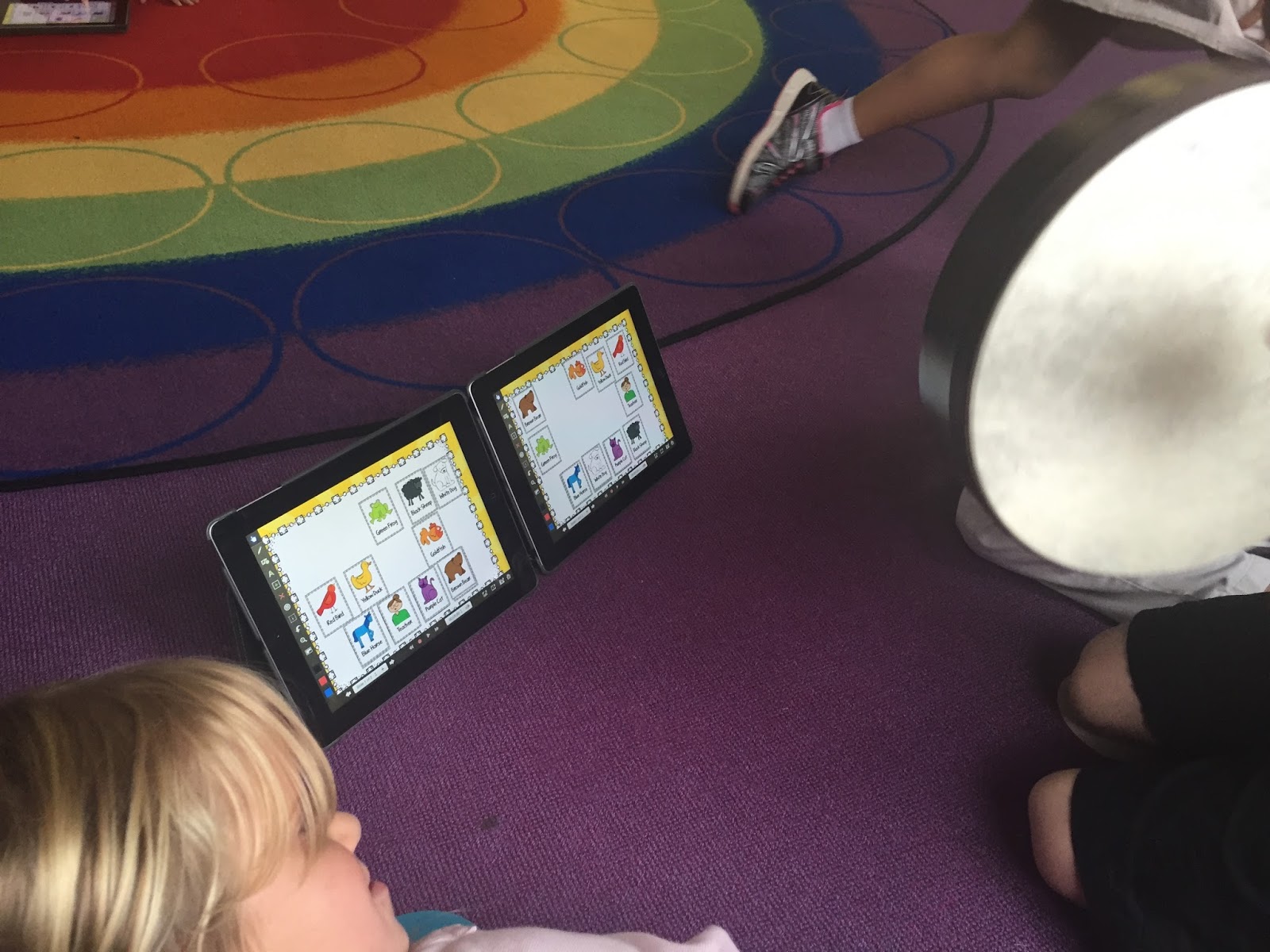
Level 4: Small Groups with iPads
 Students create their own rhythm strings on iPads and perform for each other. I used groups of 2 and one student was the "composer" who created the string while the other was the performer. Students switch after each turn.
Bonus Round: Double Up!
Two
group join forces and place their two iPads together. Composers work
together to compose an 8 card string and both hand drummers perform
together.
Tech Specs
Smartboard File
Explain Everything File
You can turn my Explain Everything File into a QR code for easy access for student downloading.
As a review of rhythm notation, I always play BINGO with my kiddos! I made a SMARTboard presentation during my first year of teaching and print/laminated boards.
Now that I'm older and wiser (and with iPads), I put the bingo boards in Dropbox instead and have the images saved to the iPads. Typically, we use a Whiteboard App to cross off symbols.
After playing BINGO many times, I've noticed the Whiteboard App (FREE) I was using had too many ads and tons of pop ups that distracted my kids. Today, we used the newly updated EduCreations instead and it worked much more smoothly!
Here is a link to my TPT store where you can get Music BINGO for your classroom!
**NO SMARTBOARD REQUIRED!**
This file requires SMART Notebook, SMART Express, or SMART Notebook Interactive Viewer. SMART Express is a free online program and SMART Notebook Interactive Viewer is a free download.
Check out the SMART website for more information.
http://smarttech.com/Support/Browse+Support/Download+Software
If you know anything about Cherie Herring, then you know how absolutely amazing she is as an elementary music teacher integrating technology.
If you teach music, love technology, have an iPad, have a SMART Board, or are interested in a Flipped Classroom, then be prepared to spend HOURS on Cherie's website.
I am ALL of the above and therefore have spent many many MANY hours on Cherie's website. Both me and my principal are very thankful for Cherie.
One of my FAVORITE things I learned from Cherie is now to use the Explain Everything App to turn my SMART Board presentations and put them on student iPads so we could all work together! After I bought an example lesson from Cherie (Turkey Solfege in TPT <--- My kiddos LOVED this!) I figured I could make my own! The process was a LOT more simple than I expected and my students were much more engaged when everyone gets a chance to participate at the same time rather than taking turns to come up to the board.
So here's what I did.
Step 1: Create SMART Board Activity.
My 2nd graders were reviewing form so I made an activity where they had to transfer the rhythm patterns onto the form below. This was meant to be a one class activity (less than 20 min) so I only made 5 or 6 pages. At the end, I left the form blank and gave the students the opportunity to create their own form and have a friend transfer the rhythm patterns.
Step 2: Export to Image Files.
 I want to eventually make an Explain Everything presentation to share with my students so I need to get my SMART Board Activity pictures on my iPad. The easiest way (in my opinion) is Dropbox. I exported my pages as .jpegs and saved them in my Dropbox account.
Step 3: Build Explain Everything Presentation
If you have never built an Explain Everything before, stay tuned for another post. There are a couple tricks and tips I'd love to share!
Step 4: Save EE Presentation in Dropbox
I took my .xpl file and saved it in Dropbox so I could create a QR code!
Step 5: Create QR code
Copy the link of the .xpl file from Dropbox and make yourself a QR code to add to your SMART Activity. That's it!
I put instructions for my students on the SMART Board so I don't have to keep repeating myself but they pretty much know what to do.
I want to eventually make an Explain Everything presentation to share with my students so I need to get my SMART Board Activity pictures on my iPad. The easiest way (in my opinion) is Dropbox. I exported my pages as .jpegs and saved them in my Dropbox account.
Step 3: Build Explain Everything Presentation
If you have never built an Explain Everything before, stay tuned for another post. There are a couple tricks and tips I'd love to share!
Step 4: Save EE Presentation in Dropbox
I took my .xpl file and saved it in Dropbox so I could create a QR code!
Step 5: Create QR code
Copy the link of the .xpl file from Dropbox and make yourself a QR code to add to your SMART Activity. That's it!
I put instructions for my students on the SMART Board so I don't have to keep repeating myself but they pretty much know what to do.
Here's a link to my Sunflower Form file! Let me know what you think!
And a HUGE thank you to Cherie for sharing all her AMAZING ideas!


 Students create their own rhythm strings on iPads and perform for each other. I used groups of 2 and one student was the "composer" who created the string while the other was the performer. Students switch after each turn.